Behat
Vortex uses Behat 4 for Behavior-Driven Development (BDD) testing. This page is for the developers who write and run those tests. After reading it, you can run any feature or tag, use the shipped steps, find the screenshots, and tell how continuous integration (CI) splits and retries your scenarios. For unit, kernel, and functional tests of PHP code, see PHPUnit.
You describe how the site should behave in human-readable stories, written in the Gherkin language, and Behat runs every step against the provisioned site. These are end-to-end tests, so spend them on your critical user journeys, such as logging in or resetting a password.
Vortex includes a pre-configured
behat.php with
profiles for Drupal projects. It also includes a browser
container
running Chromium, which you can watch through a VNC viewer while the tests
run.
Usage
Behat needs a provisioned Drupal site, so run it inside the container environment with the following commands:
- Ahoy
- Docker Compose
# Run all Behat tests
ahoy test-bdd
# Run specific feature file
ahoy test-bdd tests/behat/features/homepage.feature
# Run scenarios with specific tag
ahoy test-bdd -- --tags=@smoke
# Run all Behat tests. The `-d memory_limit=-1` flag lifts the PHP
# memory limit for long runs, matching what `ahoy test-bdd` does.
docker compose exec cli php -d memory_limit=-1 vendor/bin/behat
# Run specific feature file
docker compose exec cli php -d memory_limit=-1 vendor/bin/behat \
  tests/behat/features/homepage.feature
# Run scenarios with specific tag
docker compose exec cli php -d memory_limit=-1 vendor/bin/behat \
  --tags=@smoke
The -- before Behat's options is optional: Ahoy drops it and passes the
rest of the line to Behat. See
Ahoy > Usage.
Discovering available step definitions
Behat Steps, Mink, and Behat Screenshot each bring their own steps. To list every step definition your suite can use, run the following command:
- Ahoy
- Docker Compose
# Generate step definitions reference
ahoy test-bdd -- --definitions=l
# Generate step definitions reference
docker compose exec cli php -d memory_limit=-1 vendor/bin/behat \
  --definitions=l
Writing tests
Put each feature file in the tests/behat/features directory, where the
default suite finds it, and structure it like the following example:
@tag_describing_feature_group
Feature: Short feature description

  As a site owner
  I want to make sure that my feature does what it is supposed to do
  So that I can be sure that my site is working as expected

  Scenario: Anonymous user uses a feature
    Given I go to the homepage
    Then the path should be "<front>"
    And I save screenshot

  @javascript
  Scenario: Anonymous user uses a feature with AJAX
    Given I go to the homepage
    When I click on the element ".button"
    Then I save screenshot
Untagged scenarios run through an HTTP client that doesn't execute
JavaScript. To run a scenario in a real browser, tag it @javascript: it
then runs in Chromium in the browser container, driven through Selenium.
Each @javascript scenario drives a real browser and runs slower than an
untagged one, so add the tag only when a scenario needs JavaScript.
Skipping tests
To exclude a feature or scenario from the test run, add the @skipped tag
to it. Every profile in behat.php filters it out.
Boilerplate features
Vortex provides the following boilerplate features:
- Core user journeys: homepage, login, password reset, and search
- The shipped module and service integrations: Redis, ClamAV, redirects,
robots.txt, XML sitemap, and accessibility behat.feature, which checks that Behat itself is configured correctly- The demo features
counter.featureandpages.feature, tagged@demo
The Vortex CLI removes the features for the services and modules you
don't select during installation. The homepage, login, and Behat
configuration features are tagged @smoke.
These boilerplate tests run in the continuous integration pipeline from the moment you install Vortex, and they make a good starting point for your own.
Email
To capture outgoing messages instead of delivering them, tag a scenario
@email. Then assert on their recipients and content with the steps from
EmailTrait.
The password reset
feature
shows the pattern.
To capture the messages that a module sends through its own mail
interface, tag the scenario @email:TYPE, where TYPE is the interface's
key in the system.mail configuration. A scenario with only typed tags
collects only those interfaces, so add @email:default to collect the
default interface too.
In the ci environment,
settings.system.php
makes the same mail collector the default backend for every message sent
through interface.default. CI therefore stores those messages instead of
delivering them, even when a scenario isn't tagged. The collector is a
settings override, not stored configuration, so nothing running inside the
site can switch it off. Reroute
Email is disabled in
ci, so each stored message keeps its intended recipient instead of the
rerouting address.
The collector covers interface.default, the only interface the shipped
configuration defines. A site that routes a module through its own
interface (interface.<module> or interface.<module>_<key>, as Symfony
Mailer and Mail
System do) bypasses the
collector for those messages. For that case, docker-compose.yml also
points SSMTP_MAILHUB at a closed port in CI, so delivery fails at the
transport no matter which mail plugin produced the message.
The bare When the test email system queue is cleared step still needs the
@email tag or an earlier When the test email system is enabled step.
Each tagged scenario also clears the queue as it starts, so messages from
an earlier scenario never reach your assertions.
Project conventions
Your project's own Behat conventions live in its docs/testing.md file,
which your project team maintains to record the testing practices you agree
on. It covers the following topics:
- User story format
- Standard user types
- Test data
- An example feature file
- The process for testing a content type
Vortex ships the file in the project's docs/ directory, and the
Vortex CLI keeps it unless you decline its
Preserve project documentation? prompt. Declining it removes the whole
docs/ directory.
Configuration
See the Behat user guide and its configuration reference.
All global configuration takes place in the
behat.php file,
written in PHP, the only configuration format that Behat 4 reads.
By default, Behat runs all tests defined in the tests/behat/features
directory.
To add or remove test targets, change the suite's paths:
$suite = (new Suite('default'))
  ->withPaths('%paths.base%/tests/behat/features', '%paths.base%/web/modules/custom/mymodule/tests/behat/features')
Chrome session flags
The behat.php
configuration passes the following flags to the browser through
goog:chromeOptions, so the tests run the same way every time in the
container environment:
| Flag | Purpose |
|---|---|
--disable-extensions | Prevents interference from browser extensions |
--disable-popup-blocking | Allows tests to open popups without being blocked |
--disable-translate | Prevents the translation bar from appearing on non-English pages |
--force-prefers-reduced-motion | Disables CSS animations and transitions for test stability |
--test-type | Suppresses error dialogs and crash recovery prompts |
--window-size=1920,1080 | Sets a deterministic viewport size for consistent screenshots |
--window-size only sets the size the browser opens at. The Behat
Screenshot context resizes the window to 1440 by 900 pixels at the start
of every @javascript scenario.
Contexts and extensions
The configuration uses the following contexts and extensions:
- Behat Steps 4.x
(
drevops/behat-steps): a library of reusable Behat steps for Drupal. It also supplies the Drupal integration layer, registered as theDrevOps\BehatSteps\Extension\ServiceContainer\BehatStepsExtensionextension with the Drupal API, Drush, and black-box backends, the theme's region map, and the message and login selectors. - Mink Extension
(
friends-of-behat/mink-extension): the browser sessions and the base browser vocabulary, registered as theBehat\MinkExtension\ServiceContainer\MinkExtensionextension and theBehat\MinkExtension\Context\MinkContextcontext. Untagged scenarios use a BrowserKit session over plain HTTP.@javascriptscenarios use theselenium2session, which drives the browser athttp://browser:4444/wd/hub. - Behat Screenshot: extension
and step definitions to create HTML and image screenshots on demand or
when tests fail, registered as the
DrevOps\BehatScreenshotExtension\ServiceContainer\BehatScreenshotExtensionextension and theDrevOps\BehatScreenshotExtension\Context\ScreenshotContextcontext.
FeatureContext
The
FeatureContext.php
file is your project's own Behat context. The default suite loads it, and
it's where your custom step definitions and hooks go. Behat 4 reads them
from PHP attributes, such as #[Given] and #[BeforeScenario], and doesn't
read docblock annotations such as @Given.
FeatureContext extends DrevOps\BehatSteps\DrupalContext from the
Behat Steps package. That context
already carries every step the package provides, so the file holds only the
project's own step definitions and hooks. Don't also add the package's
WebContext to the suite: DrupalContext already includes its steps, and
registering both is a fatal error, because every web step would be defined
twice.
Reports
Behat writes test run reports in JUnit format to the
.logs/test_results/behat directory.
Screenshots
Behat Screenshot saves a
screenshot whenever a step fails, and whenever a step such as
I save screenshot runs. Each capture is an HTML file of the page, headed
by its URL, feature, step, and time, plus a full-page PNG image for
@javascript scenarios. The HTTP client behind untagged scenarios can't
take images, so those get the HTML file only. To capture a screenshot after
every passed step of a scenario, tag the scenario or its feature
@screenshots.
Screenshots land in the .logs/screenshots directory by default, and
screenshots from earlier runs stay there, because behat.php sets purge
to FALSE. To change either behavior, set the matching environment
variable inside the cli container, for example with
docker compose exec -e as the CI step does. ahoy test-bdd doesn't pass
these variables through from your host:
BEHAT_SCREENSHOT_DIRstores the screenshots in another directory.BEHAT_SCREENSHOT_PURGEset to1empties the directory at the start of a run.
For example, the following command empties the directory, then runs Behat:
docker compose exec -e BEHAT_SCREENSHOT_PURGE=1 cli \
  php -d memory_limit=-1 vendor/bin/behat
Animated screenshots
Behat Screenshot combines the per-step screenshots into an animated GIF for
each scenario, so a failing test is easier to follow. behat.php turns this
on under the animation key of the BehatScreenshotExtension extension,
with 500 milliseconds between frames (frame_delay). The frames are the PNG
images, so only @javascript scenarios produce a GIF.
Animation captures a screenshot after every passed step, and with
always_fullscreen on, each one is a full-page capture. Its cost grows with
the number of steps and roughly doubles the wall time of a run. To turn
animation off everywhere, set animation.enabled to FALSE in
behat.php. To exempt a single scenario or feature, tag it
@screenshots:animated:skip.
With animation off, the @screenshots:animated tag opts a single scenario
or feature back in. A tag on a scenario overrides a tag on its feature. See
Artifacts for how the continuous integration pipeline handles
animation.
Output format
By default, Vortex uses Behat's built-in progress formatter, with
inlineFailures: TRUE passed to its ProgressFormatter in behat.php. It
prints a dot for each passed step and the details of each failed, pending,
or undefined step as soon as it happens. Without the option, those details
wait for the summary at the end of the run. The test run continues after a
failure while the output stays minimal.
Observing the browser
For @javascript tests, Behat drives Chromium through Selenium in the
browser container. That container also runs a VNC server with
noVNC, so you can watch the browser from a browser on
your host machine. To open it, follow the steps for your setup:
- Ahoy
- Docker Compose
- Print the project information:
ahoy info
- Open the URL on the
Selenium VNC URL on hostline in a browser on your host machine. noVNC connects with the passwordsecret.
- Print the host port that maps to the container's noVNC port, 7900:
docker compose port browser 7900
- Replace
<port>with the port number after the colon in the output, and openhttp://localhost:<port>/?autoconnect=1&password=secretin a browser on your host machine.
Confirm that noVNC shows the browser window: run
ahoy test-bdd tests/behat/features/behat.feature, and watch the browser
open the site during the feature's @javascript scenarios.
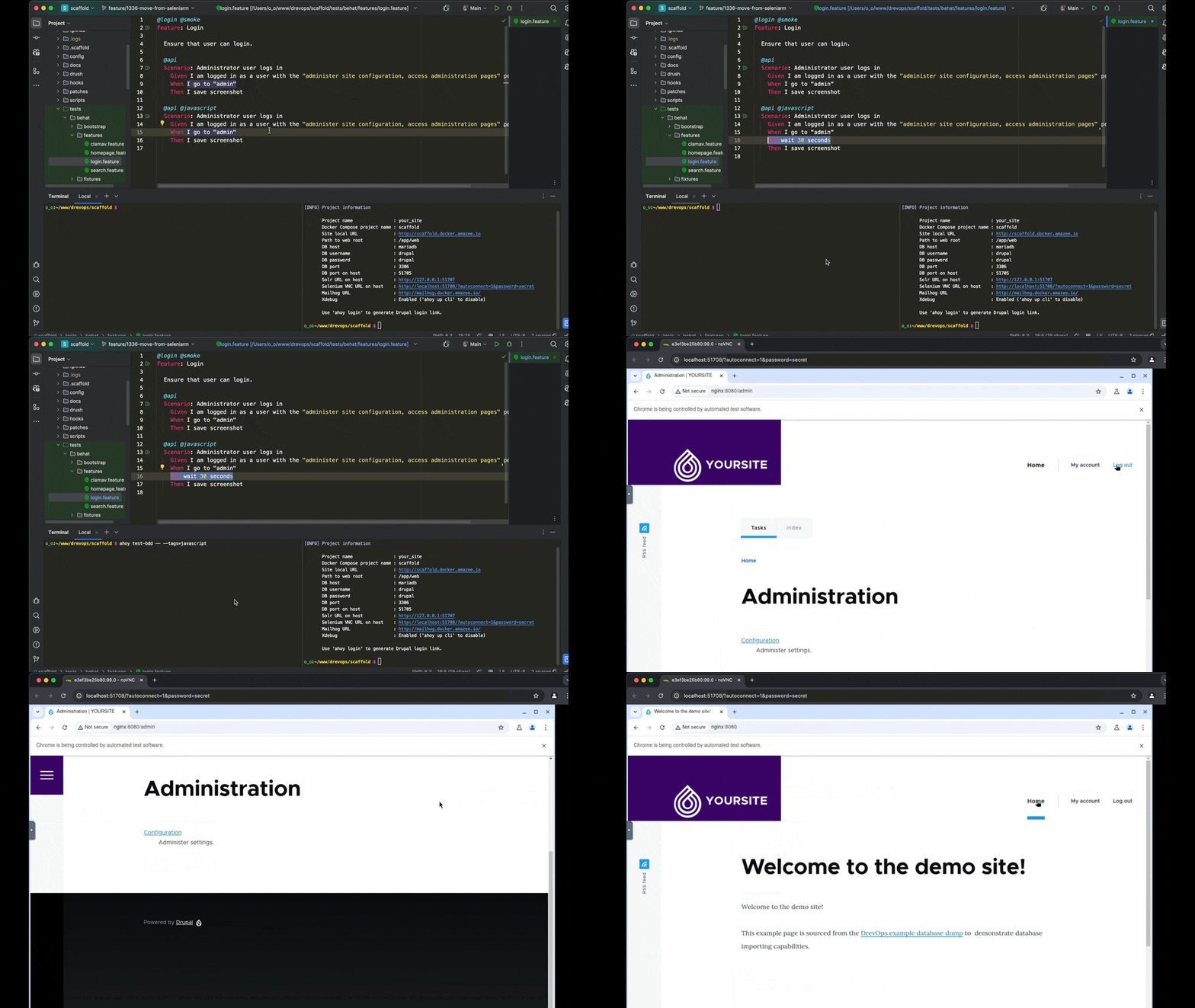
To work with the page yourself in the middle of a test, add an
And I wait for 60 seconds step to the scenario. The step pauses the test
for a minute, so you can use the browser in the container through noVNC on
your host machine.
Continuous integration
In the continuous integration pipeline, Behat runs with --strict, so an
undefined or pending step fails the run there. ahoy test-bdd doesn't pass
--strict, so to match CI locally, run ahoy test-bdd -- --strict.
Profiles
Without a --profile option, Behat uses the default profile defined in
behat.php: it runs every scenario except those tagged @skipped.
When the pipeline has more than 1 runner, Behat tests run in parallel across
the runners, so the suite finishes sooner. Tags mark which runner a feature
or scenario lands on, and the CI step picks the profile named after the
runner index, starting from p0. Vortex supports any number of
parallel runners but ships only 2 parallel profiles, p0 and p1, to
match the 2 runners the pipeline starts with:
p0(the first runner) is the catch-all: it runs every scenario not tagged@p1, plus all@smokescenarios, and skips anything tagged@skipped.p1(the second runner) runs scenarios tagged@p1, plus all@smokescenarios, and skips anything tagged@skipped.
In practice, leave a feature untagged to run it on the first runner. Tag it
@p1 to move it to the second runner, or tag it @smoke to run it on every
runner. A feature you forget to tag still runs on the first runner.
In the following example, with 1 runner, Behat runs both scenarios. With 2 runners, the first scenario runs on the first runner (untagged scenarios stay there) and the second scenario runs on the second runner:
@homepage
Feature: Homepage

  Ensure that homepage is displayed as expected.

  Scenario: Anonymous user visits homepage
    Given I go to the homepage
    Then the path should be "<front>"
    And I save screenshot

  @javascript @p1
  Scenario: Anonymous user visits homepage
    Given I go to the homepage
    Then the path should be "<front>"
    And I save screenshot
To add more p* profiles, copy the existing p1 profile in your
behat.php, change its name and tag filter, and register it in the
returned Config. Then exclude the new tag from the p0 catch-all, or its
scenarios run on the first runner as well. See Adding more
containers
for the full steps.
Profile numbers count from the first runner that runs Behat. The CI
configuration subtracts VORTEX_CI_BEHAT_PROFILE_OFFSET (0 by default)
from the runner index to pick the profile. As a result, dedicating leading
runners to other tools requires no profile renumbering or feature
re-tagging. See Test
parallelism for
the container mechanics.
To force a profile, set VORTEX_CI_BEHAT_PROFILE in the continuous
integration pipeline configuration (a repository variable in GitHub
Actions, an environment variable in CircleCI). Every runner then uses that
profile.
If the pipeline has only 1 runner and VORTEX_CI_BEHAT_PROFILE is unset,
the default profile is used and all tests run there except those tagged
@skipped. An explicitly set VORTEX_CI_BEHAT_PROFILE stays active even on
a single runner.
Artifacts
The continuous integration pipeline stores the test results and
screenshots as artifacts, and the JUnit reports track test performance and
stability. In GitHub Actions, each runner uploads its .logs directory as
the test-artifacts-<runner index> artifact, which you download from the
run's Summary page. Unless VORTEX_CI_TEST_RESULTS_SKIP is 1, the
JUnit reports also appear among the run's checks as
Test results (<runner index>). In CircleCI, the screenshots are in the
job's Artifacts tab and the JUnit reports are in its test results.
Vortex passes BEHAT_SCREENSHOT_ANIMATION_SKIP=1 into the Behat step in
continuous integration to skip animation there,
while keeping it available for local runs where a recording is worth the
wait. The variable overrides both behat.php and the animation tags.
Flaky tests
A Behat scenario can fail now and then without a real bug behind it, on a slow page load or a timing-sensitive step. How often depends on the size of your site and the resources of the continuous integration runner.
The CI step therefore retries once: when the first run fails, it runs Behat
again with --rerun, which repeats only the scenarios that failed. The step
fails only when a scenario fails in both runs. If the first run failed
without recording a failed scenario, --rerun runs the whole profile
again.
A scenario that passes only on the second run is still flaky, so check the first run's output in the job log.
Ignoring failures
Set VORTEX_CI_BEHAT_IGNORE_FAILURE to 1 to let the build pass despite
failing scenarios. Behat still runs, retries as described in Flaky
tests, and reports every failure in the job log. See Ignore
tool
failures.