Slack
The slack notification channel posts deployment messages to a channel in
your Slack workspace through an incoming webhook, with links to the
environment and its login page.
This page is for the lead or DevOps engineer who sends deployment messages to Slack. It covers the setup steps, every variable the notification channel reads, and what each message contains.
Setup
To set up Slack notifications, complete these steps:
- Create a Slack app and Incoming Webhook.
- Add
VORTEX_NOTIFY_SLACK_WEBHOOKto your hosting provider's environment variables. - Add
slackto the comma-separatedVORTEX_NOTIFY_CHANNELSlist in your.envfile, for exampleVORTEX_NOTIFY_CHANNELS=email,slack.
Confirm that the next deployment posted to Slack. The deployment output on
your hosting platform shows [ OK ] Slack notification sent successfully.,
and the message appears in the Slack channel. The notification fails when
Slack answers with any HTTP status other than 200.
Environment variables
See the Notifications overview for the router, what a failed
channel stops, the shared VORTEX_NOTIFY_* variables, and the Location
column. The following table lists the variables that the slack
notification channel reads:
| Variable | Required | Default | Location | Description |
|---|---|---|---|---|
VORTEX_NOTIFY_SLACK_WEBHOOK | Yes | None | Hosting | Slack webhook URL |
VORTEX_NOTIFY_SLACK_PROJECT | No | VORTEX_NOTIFY_PROJECT | .env | Project name |
VORTEX_NOTIFY_SLACK_MESSAGE | No | Default template | .env | Fallback text template |
VORTEX_NOTIFY_SLACK_CHANNEL | No | None | .env | Slack channel to post in, as #channel-name, or a user as @username; overrides the webhook's default Slack channel |
VORTEX_NOTIFY_SLACK_USERNAME | No | Deployment Bot | .env | Bot display name |
VORTEX_NOTIFY_SLACK_ICON_EMOJI | No | :rocket: | .env | Bot icon emoji |
VORTEX_NOTIFY_SLACK_BRANCHES | No | None | .env | Exact branch names to post for (comma-separated); empty posts for every branch |
VORTEX_NOTIFY_SLACK_LABEL | No | VORTEX_NOTIFY_LABEL | Hosting | Deployment label |
VORTEX_NOTIFY_SLACK_ENVIRONMENT_URL | No | VORTEX_NOTIFY_ENVIRONMENT_URL | Hosting | Environment URL |
VORTEX_NOTIFY_SLACK_LOGIN_URL | No | VORTEX_NOTIFY_LOGIN_URL | Hosting | Login URL |
VORTEX_NOTIFY_SLACK_EVENT | No | VORTEX_NOTIFY_EVENT, then post_deployment | Hosting | Deployment event |
VORTEX_NOTIFY_SLACK_LOG | No | VORTEX_NOTIFY_LOG, then 0 | .env | 1 adds the collected deployment log to the message attachment; 0 leaves it out |
VORTEX_NOTIFY_SLACK_LOG_FILE | No | VORTEX_NOTIFY_LOG_FILE | Hosting | Log file added to the message attachment; the router sets the default |
Event behavior
Vortex posts a Slack message for both pre_deployment and
post_deployment events:
- Pre-deployment: Gray color with "Deployment Starting" status, and no environment or login links, since the site isn't up yet
- Post-deployment: Green color with "Deployment Complete" status
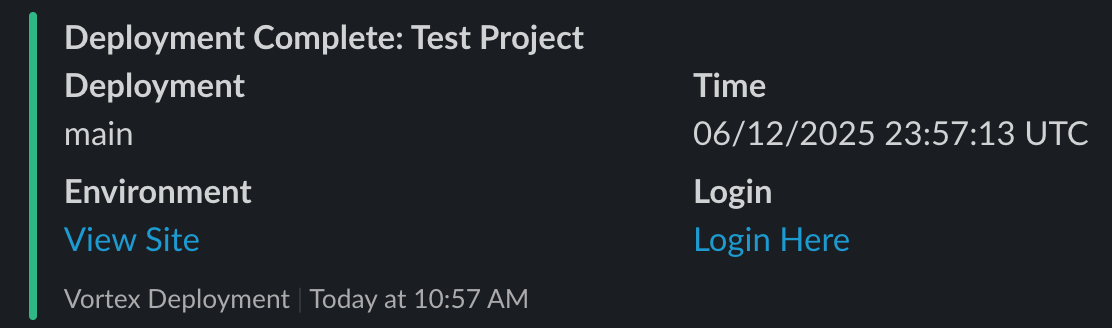
Each message is a Slack attachment with the following parts:
- A title made of the status and the project name, for example
Deployment Starting: My ProjectorDeployment Complete: My Project. - Deployment and Time fields with the deployment label and the timestamp.
- Environment and Login fields with View Site and Login Here links, in post-deployment messages only.
- The collected deployment log, when deployment logs are on. A pre-deployment message goes out before provisioning, so it never carries that deployment's provisioning log.
- A
Vortex Deploymentfooter.
Slack uses the fallback text from the message template in notifications and in clients that can't display attachments.
Example
The following message is a post-deployment notification: